

Ag HHS Vet Employment Onboarding FAQ
ONBOARDING FREQUENTLY ASKED QUESTIONS
This page provides answers to common questions about Employment Center processes and services. It is intended as a supplemental resource for the areas we support and does not replace university onboarding guidance.
For official university onboarding information, refer to New @ Purdue - Resources for New Purdue Employees.
How do I know who is handling my onboarding?
The type of position you are being hired into determines whether onboarding is managed by the Employment Center or your hiring department.
Handled by the Employment Center:
- Student employees
- Graduate staff
- Temporary employees
- Postdoctoral researchers
- Limited Term Lecturers, also known as LTLs
Handled by the hiring department:
- Faculty
- Staff
- Lecturers
If you are unsure who is handling your onboarding, contact your hiring supervisor or department.
What happens after I accept my offer?
What happens next depends on the type of position you are being hired into.
All new hires receive a welcome email to access onboarding tasks. If your onboarding is managed by the Employment Center, you will also receive an email from us with your next steps.
If you expected an Employment Center email and have not received one, contact your hiring supervisor or department to confirm your hiring request has been submitted.
How will I receive onboarding instructions?
The Employment Center sends onboarding instructions by email.
Check your inbox and junk or spam folders regularly after accepting your offer. If you are using a Purdue email account, also check your quarantine folder.
If your department says your hiring request has already been submitted to the Employment Center and you still have not received an onboarding email, contact the Employment Center for assistance.
I have not received the New Hire Wizard or onboarding email. What should I do?
First, check your inbox and junk or spam folders. If you are using a Purdue email account, also check your quarantine folder.
If you received an onboarding email from the Employment Center but cannot find the New Hire Wizard, reply directly to your onboarding email for assistance. If you have not received any email from the Employment Center, contact your hiring supervisor or department to confirm your hiring request has been submitted to the Employment Center.
What should I do if my personal information is incorrect?
If personal information, such as your legal name or address, is incorrect in your offer letter or onboarding email, reply to your onboarding coordinator and let them know what needs to be reviewed or corrected.
I accepted my offer but have not heard anything. Who should I contact?
If your onboarding is processed by the Employment Center, you will receive an email from us with your next steps.
If you have not received an email from the Employment Center, check your junk or spam folders. If you are using a Purdue email account, also check your quarantine folder. If you still do not see a message, contact your hiring supervisor or department to confirm your hiring request has been submitted to the Employment Center.
Faculty, staff, and lecturer employees should contact their hiring supervisor or department for onboarding updates.
I received my onboarding welcome letter but cannot log in. What should I do?
Use the password setup link highlighted in red in your welcome letter to create your password. This link can only be used for the initial password setup. After your password is created, return to the welcome letter and use the login link highlighted in yellow to access your onboarding tasks.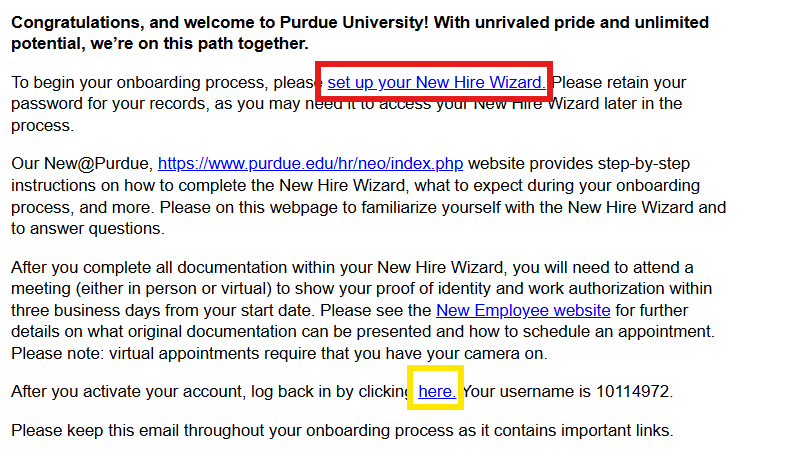
If you receive an error stating that your email activation link is invalid or has already been used, and it has been less than 90 days since the link was sent, this usually means you selected the password setup link again after your password was already created.
If you do not remember your password, use the login link highlighted in yellow in your welcome letter. On the login page, select Forgot password? and enter the email address you used for onboarding. You will receive an email with a link to reset your password.
I am getting an error in my onboarding tasks. What should I check?
Some onboarding tasks require all fields in the Personal Information and Global Information sections to be completed before you can move forward.
Check that required fields such as sex, nationality, ethnic group, veteran status, disability status, and race information are completed. If you see an option to Show more fields, select it and complete any required fields that appear.
If you deleted the Global Information section and cannot add it back, reply directly to your onboarding email for assistance.
I entered incorrect information during onboarding. How do I change it?
Some information submitted during onboarding, such as tax withholding, direct deposit, or address information, cannot be changed during onboarding.
You will need to wait until your first day to update your information through Employee Self Service.
What is the Form I-9?
Form I-9 is a federal requirement used to verify employment eligibility for individuals working in the United States.
When do I need to complete my Form I-9?
Form I-9 completion has two parts:
- Section 1: Complete Section 1 no later than your first day of employment.
- Section 2: Present your original, unexpired I-9 documents no later than the third business day after your start date.
If Form I-9 is not completed by the required deadlines, your employment may be terminated.
What documents do I need for my I-9 appointment?
You must present original, unexpired documents from the Form I-9 Acceptable Documents list maintained by U.S. Citizenship and Immigration Services.
Your documents must be physically in your possession at the time of your appointment, whether you attend in person or virtually. Photographs, scans, printed copies, or screenshots of documents cannot be accepted.
How do I schedule my I-9 appointment?
Use the scheduling instructions provided in your onboarding email to choose your new hire I-9 appointment. To view available dates and times, first select the New Hire I-9 Verification service offering on the Bookings calendar.
If you are unsure which option to select, reply directly to your onboarding email for assistance.
Can my I-9 appointment be completed virtually?
Yes. New hire I-9 appointments are available in both in-person and virtual formats.
Use the scheduling instructions provided in your onboarding email to choose the appointment format that works for you.
You must be physically present in the United States at the time of your appointment, whether attending in person or virtually.
I received an E-Verify email saying my employment eligibility could not be confirmed. What should I do?
If your Form I-9 was completed more than 5 business days before your start date:
- Central I-9 Support will close the E-Verify case.
- On your start date, Central I-9 Support will restart Section 1. The person who reviewed your documents during your original I-9 appointment will then contact you to complete Form I-9 again.
Note: For employees with an F-1/J-1 visa who receive a new I-20/DS-2019 for a fall start date, the above may not apply. Instead, Central I-9 Support will email you within 2–3 business days of the Tentative Nonconfirmation notice with instructions. In some cases, no action is needed until early September after your SEVIS record is active for verification.
I do not have a Social Security number yet. What should I do?
If an onboarding task asks for a National ID number and you do not yet have a Social Security number, delete the National ID field using the trash can icon so you can continue.
You will need to apply for a Social Security number through the Social Security Administration within 30 days of your start date. Helpful information outlining the process is available here: (link).
I received my Social Security number. What should I do next?
Follow the instructions provided here: (link) to update Section 1 of Form I-9 in the New Hire Wizard. Follow the instructions carefully, as this step must be completed exactly as directed.
My start date is incorrect. What should I do?
If you received an onboarding email from the Employment Center and the start date listed is incorrect, reply directly to that email. The Employment Center will review the information and make any necessary corrections. Faculty, staff, and lecturer employees should contact their hiring supervisor or department regarding start date corrections.
Can I change my start date?
Start date changes must be approved by your hiring supervisor or department. Contact your hiring supervisor or department first to discuss the requested change. After the change is approved, your department can coordinate any needed updates.
Can I begin working before my official start date?
No. Employees may not begin working before their confirmed start date without prior written approval from the Employment Center.
Can I attend training before my start date?
No. Job-related training may not be completed before your confirmed start date unless prior written approval has been provided.
Can I attend orientation before my start date?
No. Orientation and other work-related activities must occur on or after your confirmed start date unless prior written approval has been provided.
When will I receive my first paycheck?
Your first paycheck depends on your start date, position type, and pay schedule.
Review your onboarding email or appointment information to determine whether your position is paid biweekly or monthly, then visit the Payroll Calendar Dates page and click View More Information under Monthly / Biweekly Dates Listing. In the spreadsheet, locate the pay period that includes your start date to find the corresponding pay date.
Note: Payroll processing for each pay period generally closes 1–2 weeks before the pay date. Your employment information, direct deposit details, and any required time entries and approvals must be complete by the applicable payroll deadlines to be paid correctly and on time.
How do I set up direct deposit?
Direct deposit information is entered through Employee Self Service in SuccessFactors.
Complete or update your direct deposit information as soon as possible to help prevent payment delays. Changes must be completed before the applicable payroll processing deadline to take effect for that pay date.
For SuccessFactors timekeeping and time off instructions, refer to Employee Information, Timekeeping and Time Off.
How do I record my work hours?
How you record time depends on whether you are exempt or non-exempt and whether you have a positive or negative time profile.
- Non-exempt employees: Record hours worked using either WebClock or Timesheets, depending on the position.
- Exempt employees: Do not record time on Timesheets. Submit time off requests when applicable.
How do I know if I am exempt or non-exempt?
Your exempt or non-exempt status is listed in your offer letter, when one is issued.
Note: Hourly student positions, other than graduate staff, are non-exempt and do not receive offer letters.
How do I know if I have a positive or negative time profile, and what does that mean?
Hourly student and temporary positions use a positive time profile. Other non-exempt positions may use either a positive or negative time profile depending on the position.
Both positive and negative time profiles are used in Timesheets:
- Positive time profile: Employees enter and submit hours worked for approval.
- Negative time profile: Scheduled hours automatically populate on the timesheet, and the timesheet is submitted automatically at the end of the week. Manual submission may be needed if changes are made.
Why can’t I access WebClock or Timesheets?
Access to WebClock or Timesheets is not available until your start date, when your position becomes active.
If your start date has arrived and you cannot access the expected system, verify with your supervisor that your position is set up for the correct timekeeping method. If your supervisor confirms your setup is correct and you still cannot access the system, contact IT for technical assistance.
Note: If you hold more than one position, you may use WebClock for one position and Timesheets for another. Make sure you are using the correct timekeeping method for the position you are trying to record time for.
When should I submit my hours, and what happens if I miss the deadline?
Submit hours according to the payroll deadline for each pay period. Refer to the Payroll Calendar Dates page referenced above for pay periods, deadlines, and pay dates.
Late submissions may delay payment until a future payroll cycle. If you miss a deadline, contact your supervisor for guidance on the next step.
Who should I contact for questions outside the Employment Center?
Some questions are handled outside the Employment Center. Use the guidance below to find the right contact.
- Human Resources questions: Refer to Purdue Human Resources Help and Quick Contacts for questions about benefits, retirement, time off, ADA requests, and other HR topics.
- Tax questions: Refer to Purdue Tax Services and Forms for tax information, including GLACIER (Purdue’s tax compliance system for international employees). If needed, the Employment Center can send completed GLACIER documents to Payroll through campus mail for you.
- Immigration and employment eligibility questions for international employees: For Purdue-sponsored visas, contact International Students and Scholars. For non-Purdue-sponsored immigration or employment eligibility questions, we recommend consulting an immigration attorney.
Note: The Employment Center cannot advise on visa or immigration issues.