

Elements Overview
College of Agriculture's Brief Overview of the Elements Reporting System
November 18, 2025
Here are 2 steps that faculty and specialists can start ensure their Elements account is ready for the upcoming Faculty Annual Review process. If you are new to the Elements Reporting System, please complete this core training provided by IDA+A.
A bit of context first…
- Using Elements for Annual Faculty Reviews for Purdue University West Lafayette Campus is led by the Provost’s office and managed by Institutional Data Analytics + Assessment (IDA+A). Information and instructions are available: Purdue Elements Training - Office of the Provost - Purdue University.
- The CoA College Success Managers (CSMs) are Brad Joyce and Cheyenne Kleist, and they are available to assist faculty and specialists. Please submit a ticket.
- Data management includes harvesting, data feeds, and manual entry as shown in these images:
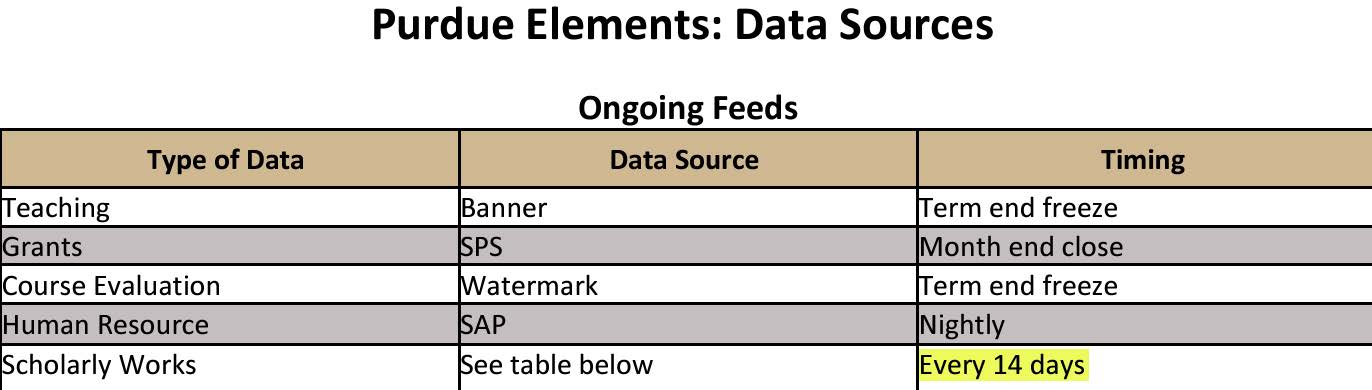

“Y” indicates the databases where scholarly activity is harvested.
ELEMENTS Homepage = 4 Data Tiles
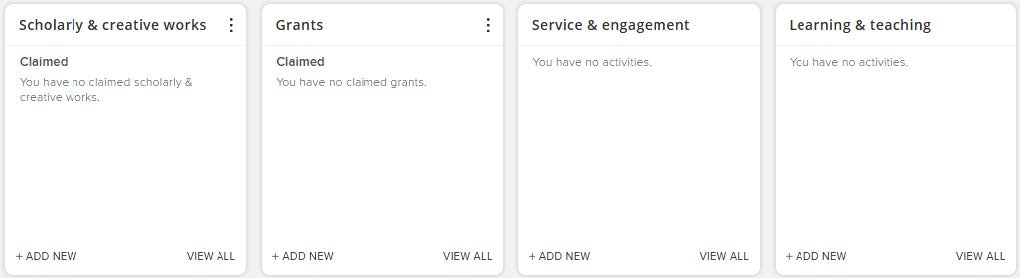
(1) Data Harvests, (2) PERA Data Feeds, (3) Manual Entry & (4) Banner/Watermark Data Feeds
CoA’s ELEMENTS Website
Faculty and specialists navigate to this CoA site to locate the link to the Provost’s site, to review information and instructions for entering data and running reports, and to log in to Elements: https://ag.purdue.edu/department/arge/elements/index.html
Login with BoilerKey to Elements, then complete these 2 steps.
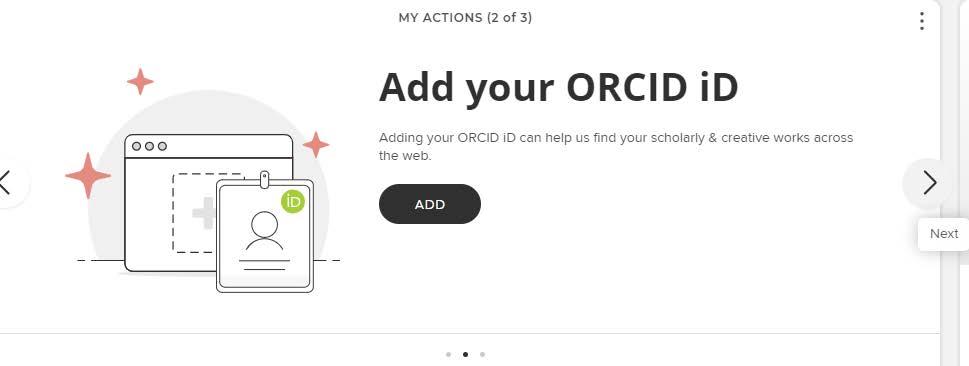
STEP 1 --- In the TOP PANEL, click to add your ORCID ID
STEP 2 --- In the TOP PANEL, claim harvested “Scholarly and creative works”
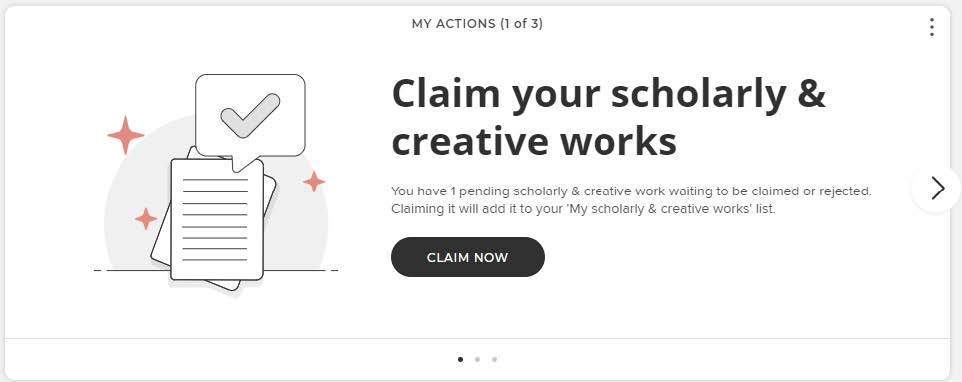
- CLAIM or REJECT each item.
- Click the Home icon to return to the homepage.
- For each CLAIMED item, complete:
- Status
- Primary & Secondary Scholarship Types
- Select the type of Claimed work
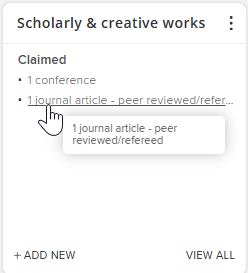
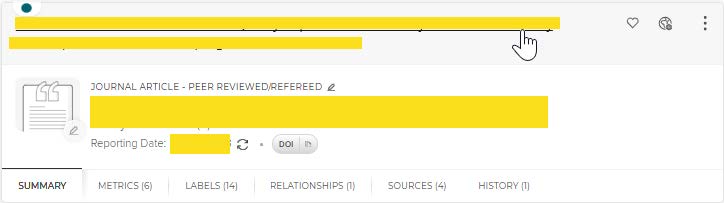
- Click on title
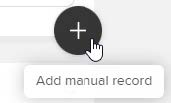
- Scroll to the bottom and click the + icon “Add manual record”
- This opens a manual record – better known as “edit” mode:
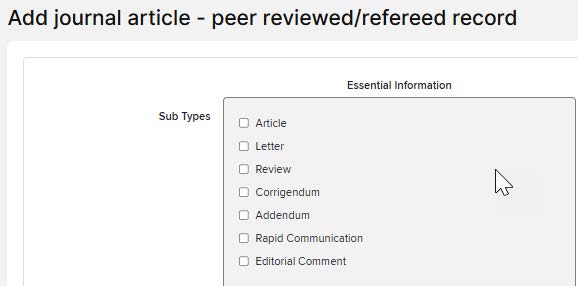
- Scroll down and complete
- Status
- Primary & Secondary Scholarship Types
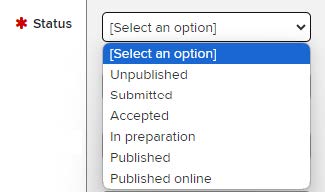
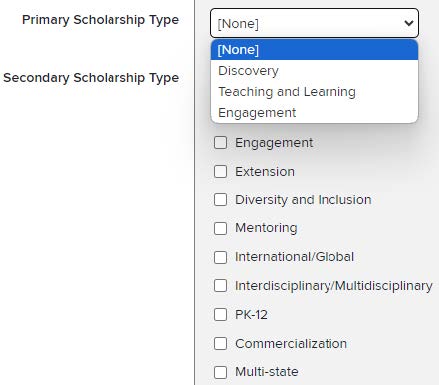
- Click “SAVE” at bottom
- Repeat this process for each “Claimed” item
Need Help?
The CoA CSMs are available to answer your questions and to assist in getting your items entered/corrected. You may email your current CV. We will compare your CV to your Elements account and update/enter data for you. We will focus on 2025 first to ensure that data are ready for the annual review. We can return to your account later, and enter items for previous years if you would like.
Submit a ticket