

Running Extension Reports
Elements – Running Extension Reports
CSMs: Brad Joyce and Cheyenne KleistThese instructions are identical for 2 reports:
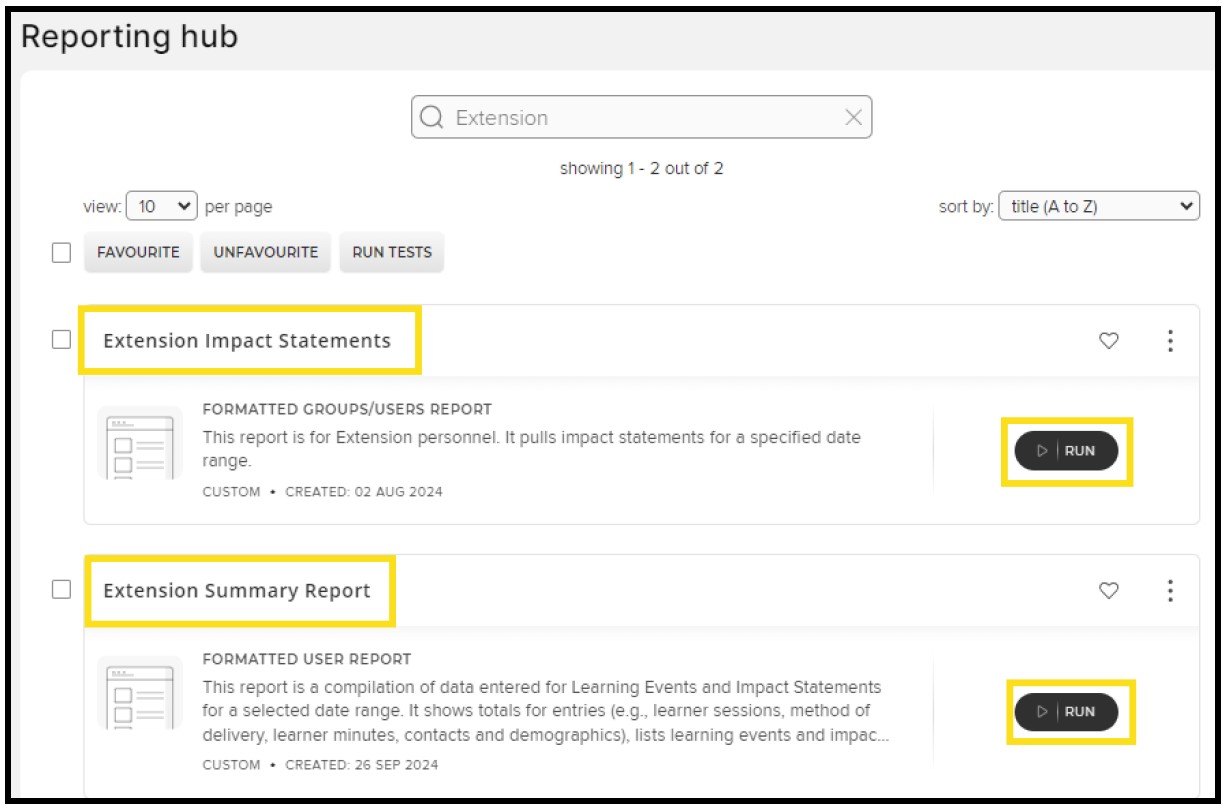
- Extension Impact Statements
- Extension Summary Report
- Go to the Elements site: https://purdue.elements.symplectic.org/
- Login
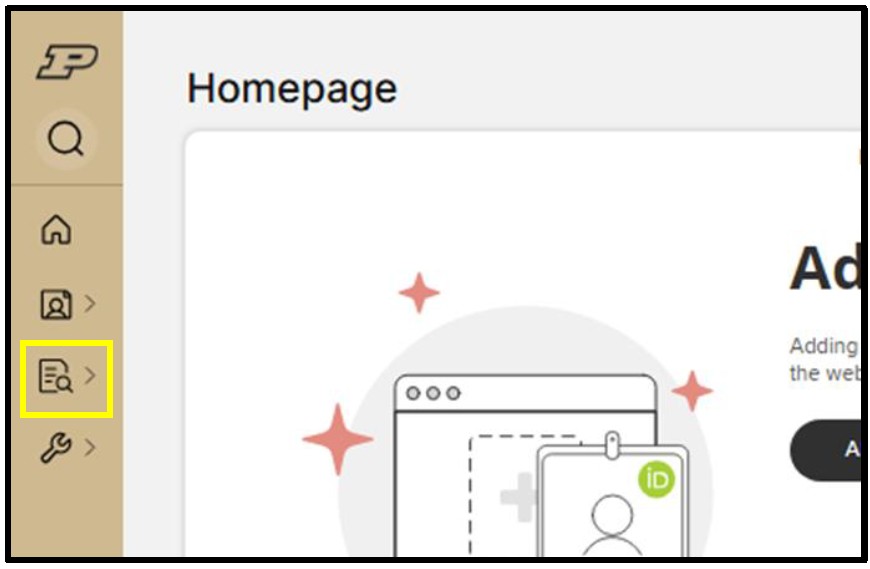
- Locate the vertical menu on the left side of the screen
- Click the third icon labeled Search & Reporting
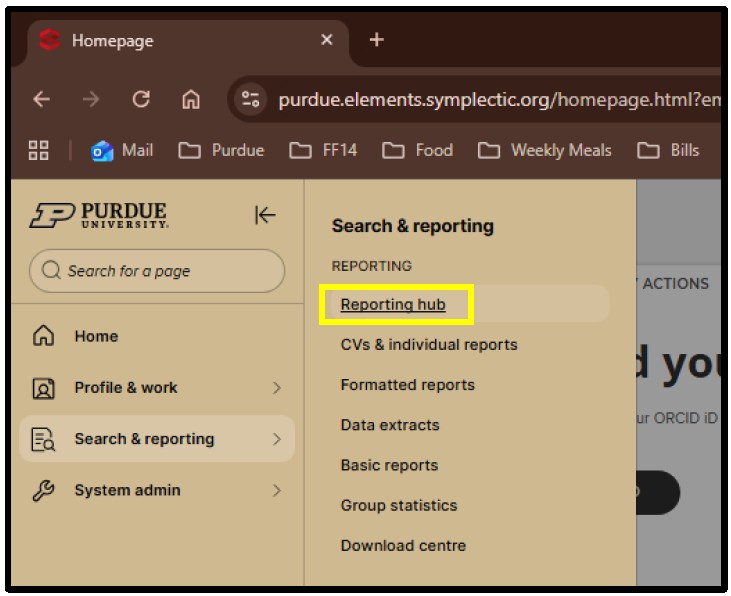
- From the dropdown menu, select Reporting hub
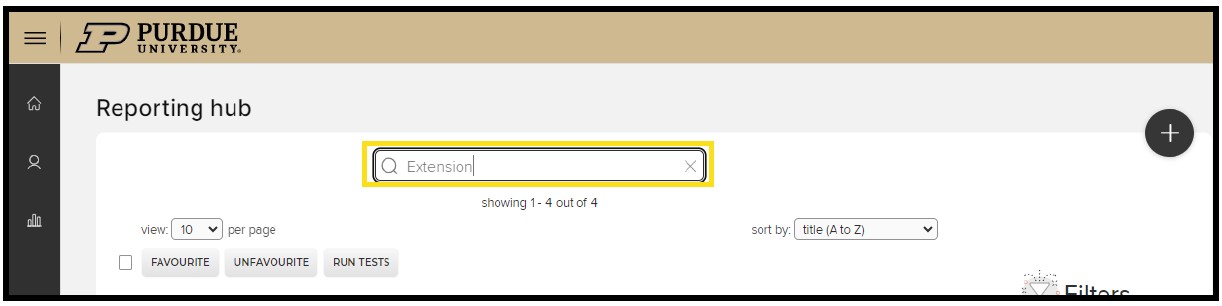
- Type “Extension” in the search
- Locate the report, and click Run
Setting up the report logic to run report
- Select user: Name already listed
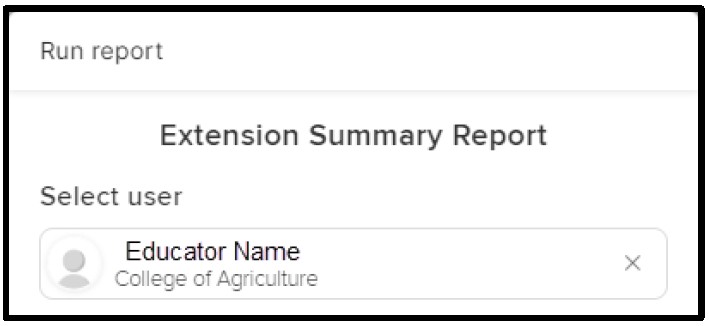
- Inactive users: IGNORE this

- Non-academic users: Click the toggle button to “include”

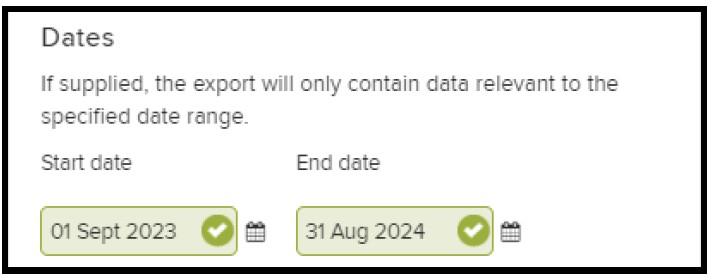
- Dates: Set date range
- Format: Click PDF or DOC
- PDF: to your supervisor or others
- DOC: for own records

- Click Run
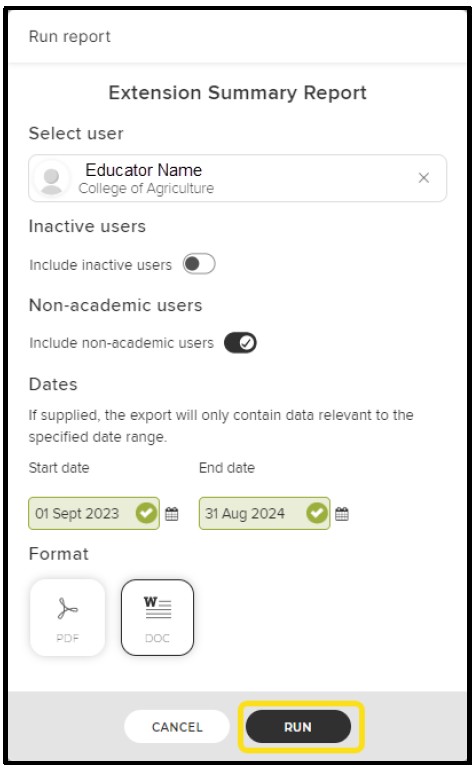
- Report will download