REEport Directions for Project Initiations
RETURNING USERS: Log in to NIFA’s reporting portal at portal.nifa.usda.gov using your Purdue email address and the password you created when you activated your account.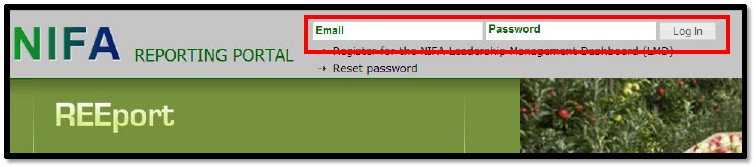
FIRST TIME USERS: If this is your first time using the NIFA Reporting Portal or you have forgotten your password, go to the website at portal.nifa.usda.gov, click on Reset Password, then follow the instructions on the next screen.
Please Note: If the system tells you that your email address is not recognized, please contact Julie Estrada at 494-6047 or estradaja@purdue.edu to troubleshoot the issue.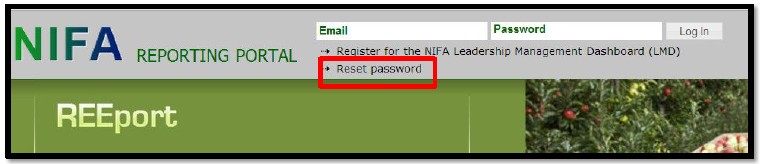
After you’ve logged on, click on REEport (SAES – PURDUE UNIVERSITY) under Active Applications near the bottom of the page.
Please Note: If you do not have REEport (SAES – PURDUE UNIVERSITY) under active applications or you only have REEport (PURDUE UNIVERSITY) without the SAES, please contact Julie Estrada at 494-6047 or estradaja@purdue.edu. You must use the SAES (State Agricultural Experiment Station)portal.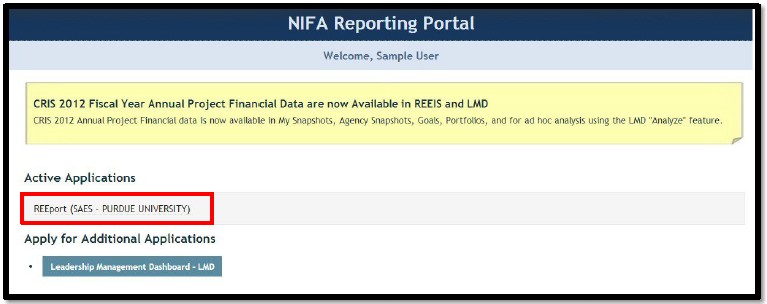
Chrome and Safari Users: You may get the following warning if you are using a browser other than Internet Explorer or Firefox, but REEport will still work with other browsers such as Chrome or Safari. Just click OK to continue.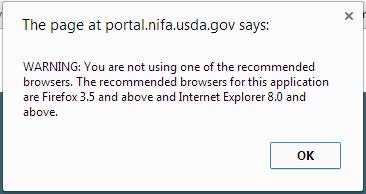
Click on the Project Initiation icon or Project Initiation at the top menu bar.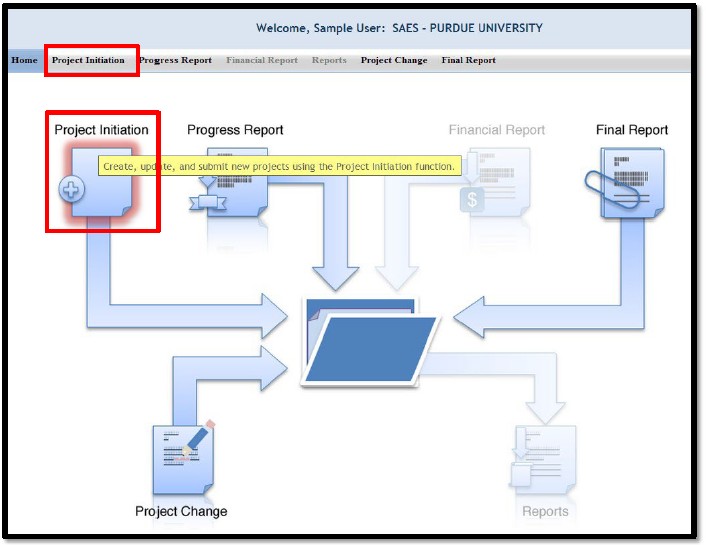
The Track Project Initiations page will open.
Do not enter anything in the search fields!
Instead, Look in the Project(s) in Draft Stage folder (by clicking on the folder icon) to find your project.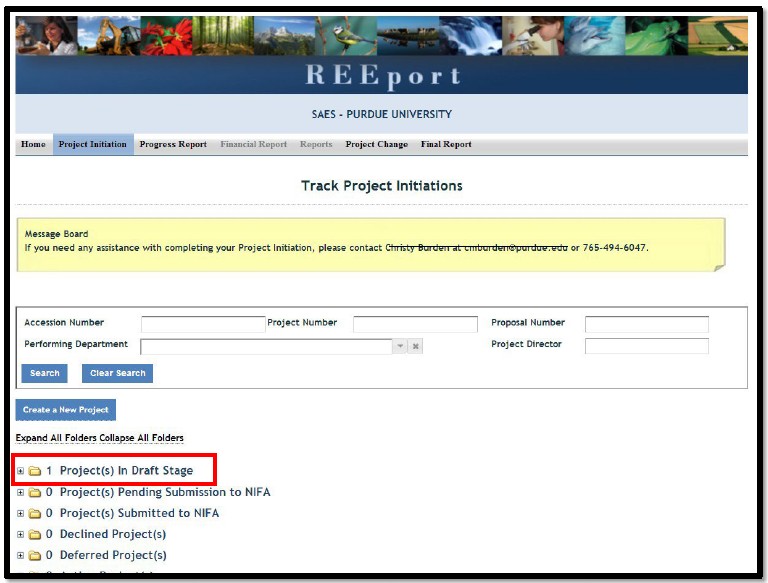
To begin completing the project initiation, open the project by clicking on the Title (or any other underlined text except “PDF”).
Cover Page
The cover page collects identifying information for your project. Some of that information has been prefilled for you by grants.gov. You should complete all other blank white sections of the cover page (when applicable).
The project number will come from ARGE. If you have not already been given a project number by ARGE, please contact Julie Estrada at estradaja@purdue.edu or 765-494-6047.
Click Next.
Please Note: All fields with a white background are editable, but fields with a gray background are not editable.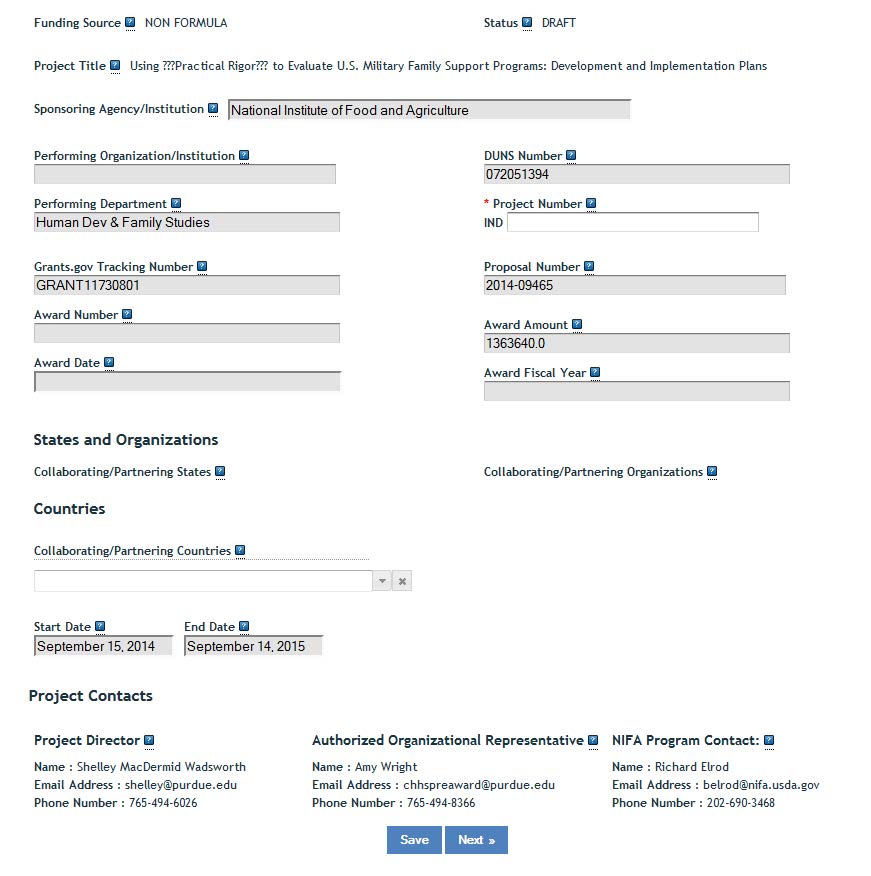
Participants
Estimated Project FTEs for The Project Duration: Please keep in mind that 1.0 is equivalent to 100% of your Purdue employment effort for one year. If any percent of your appointment is teaching or extension, you would not put 1.0 for the year when calculating your time. If you have a 20% research appointment, and all of your research time is dedicated to the research in this proposal, you would put 0.2 for one year. Adjust the numbers accordingly if your research time is split between two or more projects. For Co-PDs, grad and undergrad assistants, etc., just calculate their time in the same way. To help you decide which row to put them in, click on the blue question mark in the REEport application.
Finally, once you have estimated the FTEs for one year, multiply the amount of effort calculated in each box by the number of years in the project.
HELPFUL HINTS: Clicking on Previous or Next automatically saves your progress as you move forward or backward in the system. Clicking Save, saves your work on that page, while keeping you on that page.

Goals, Products, Outcomes, Audience, Methods, And Summary
For the next several sections, you will just copy and paste text directly from your grant document(s) into these fields. There is an 8,000 character (including spaces and punctuation) limit for each text field in REEport. Therefore, if any of the sections from your project outline are longer than 8,000 characters, you will need to summarize the information.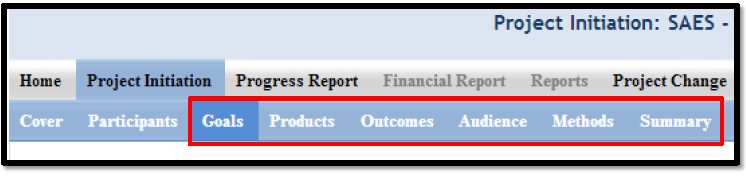
Keywords
The keywords section of a grant project initiation cannot be edited in REEport. If there is an error (e.g., a missing keyword, a keyword you need to have removed, a typo, etc.) you must contact the Administrative Contact listed on your Award Face Sheet.
Click Next.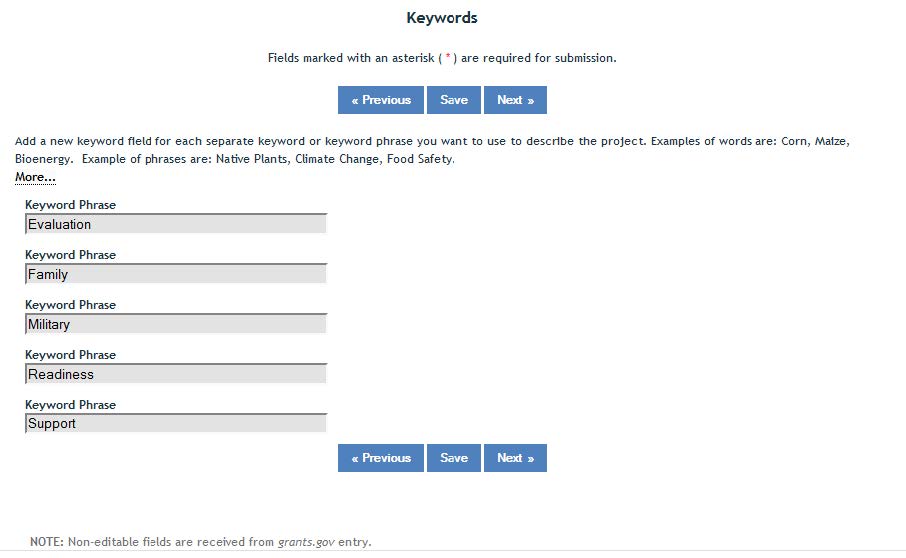
Classification
Forestry & Animal Health Component:
- If the funding source of this project is McIntire-Stennis or Animal Health, these fields will be prepopulated with “100%”,respectively.
- If there is a portion of the project that is Forestry and/or Animal Health, you must enter the percentage in these fields. If no portion of this project supports animal health research, you must enter "0" for the percentage; you may not leave it blank.
Activities: Use your best guess on how your time on this project will be divided between Research, Extension, and Education. It is fine to put “0” in one or two of the fields, but all three fields together must total 100%.
KA, SOI, and FOS: Use the drop down menu to see the full list for each Knowledge Area, Subject of Investigation, and Field of Science. You may find it easier to search through your options by viewing the NIFA Classification Manual at http://cris.nifa.usda.gov/manualviii.pdf
If you need to add more rows, click the blue “+” button.
Click Next.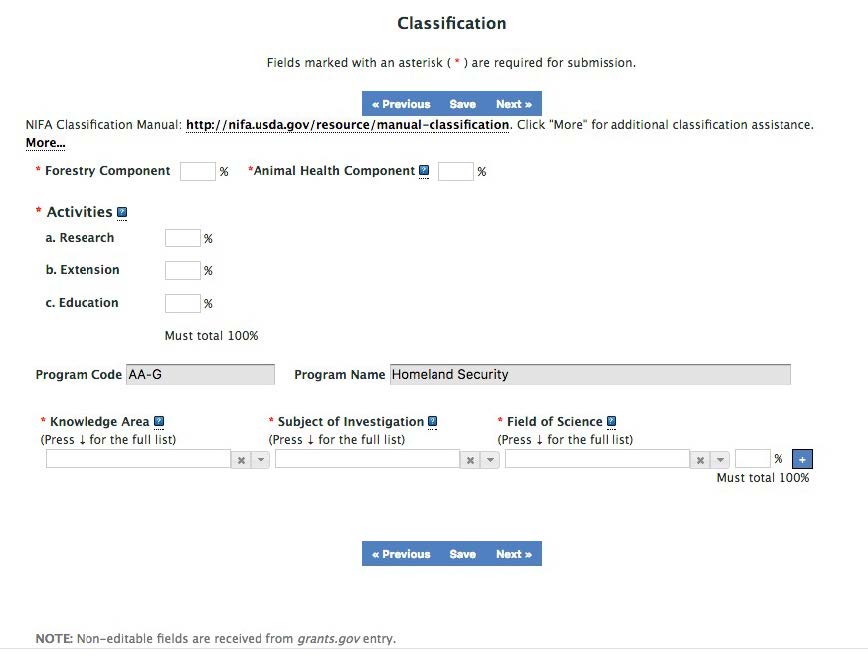
Submit for Review
If you have completed all required sections, your screen should look like the top picture.
We recommend that you save a PDF copy for your records by clicking on Review in PDF Format and then saving a copy to your computer.
Click on Submit for Review.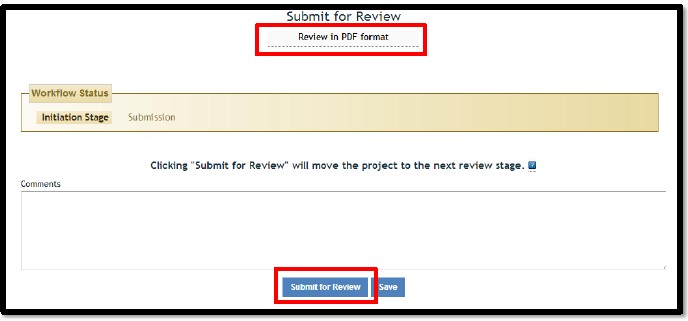
Please Note: If your screen looks like the bottom picture, you must complete all of the sections that are listed before you'll be able to submit your project for review.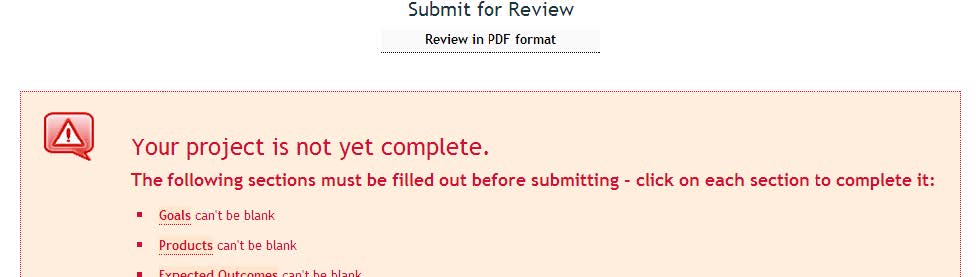
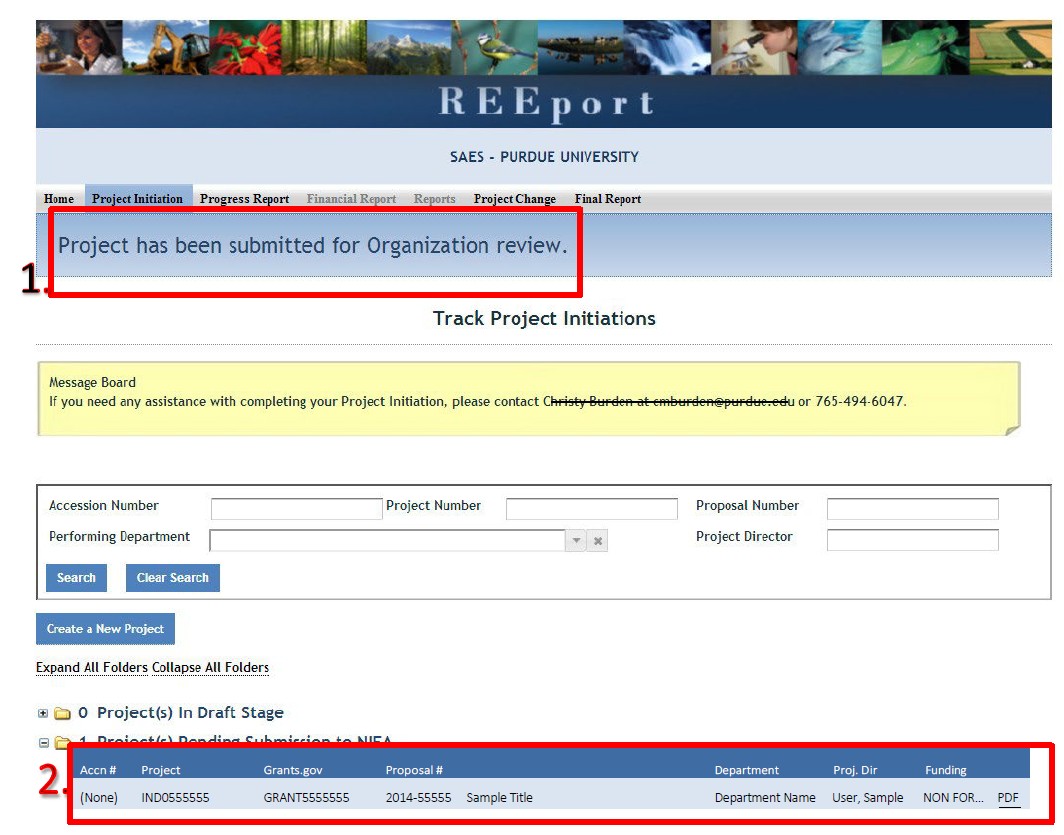
Once you click Submit for Review, you will be redirected to the Track Project Initiations page.
There will be two indications that your project has been properly submitted for organizational
level review.
- The blue announcement text above Track Project Initiations should read, Project has been submitted for Organization review.
- Your project should have moved from the Project(s) in Draft Stage folder to the Project(s) Pending Submission to NIFA folder.
Thank you!